

A lot of wedding planning is logistical strategy: how to direct potentially hundreds of people (guests, vendors, bridal party) who may be traveling in from from across the country or even the world, and move them between various locations within small windows of time. Maps can be a be a major asset in communicating to everyone where the various locations are: ceremony, reception, bridal party get-ready spot, airports, hotels, rehearsal, and so forth. You might even want to add entertainment and your favorite restaurants for the folks from out of town.
Using online resources like Google Maps to embed maps into your wedding website and to print on invitation inserts or the wedding program is one option. But there are even more specialized services that can take it a step further: cramming even more information into your maps, customizing them with your own icons, and even adding location photos. One such service is WeddingMapper.com.
WeddingMapper provides an online Google Maps application allowing you to create your own customized wedding map. They have other features available as well, including a local vendors directory and bridal community, but it’s the maps I want to focus on. When you go to their site and click Create a Wedding Map, then enter in the city to start off, you’ll be presented with a basic map and a resource interface menu.
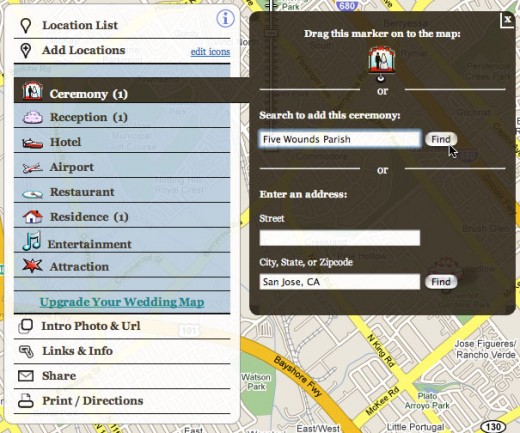
Adding a location to the map
Adding locations is easy: click the type of location (i.e. “Ceremony”) and enter in the name or address for the app to locate it on the map. A customized pushpin icon will be tacked in, and you’ll be able to enter location details to personalize it, even photos. I had a basic map put together with descriptions and photos in about ten minutes or so.
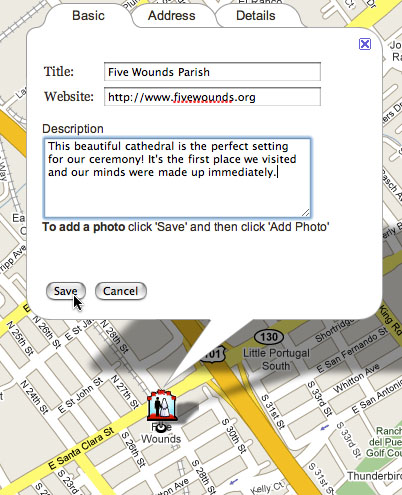
Adding location details
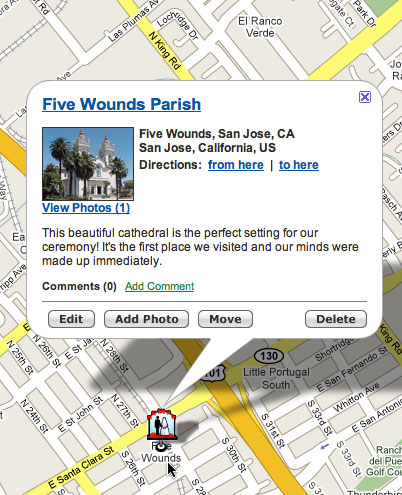
After adding a photo to the location
Sharing your map is the next step. WeddingMapper provides some DIY guides for print projects, ranging from quick and easy to some really involved traced map projects, all of which can be included in stationery like your wedding program or invitation inserts. To keep it geek, I was more interested in embedding the map into HTML–say, into a page on a personal wedding website.
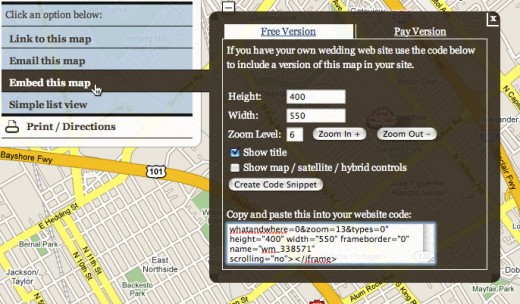
Exporting the map to embed in a website
From the left-hand menu, click the “Sharing” tab to expose some sharing options. You can link to it, email it, export a list view, and–my favorite–embed it. Selecting to embed it presents more options: how you’d like the zoom level set, the default size, and so on, as well as an HTML code snippet to embed into your website. One option I would like to have seen, but didn’t, is an option to select which location to have the map centered on. After exporting, my map centered on the Ceremony by default.
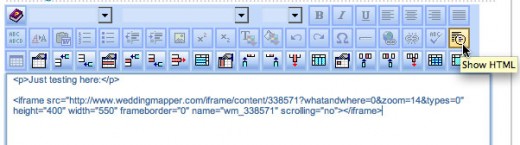
Embedding the map into a web page
Embedding it was easy with a sample WedShare wedding site: I just used the HTML mode of the WedShare page editor and pasted in the WeddingMapper code. Afterwards, I browsed to the page on the wedding website and the map loaded on the page within 10 seconds or so. It included the title, all my locations marked with my icons, and links on each location to view the photo, read location details, and so forth. I noticed that clicking on these links would take you to your map on WedddingMapper’s site. For the full-featured version of the widget, which keeps all the linked information on your own website as well as your list of locations in a clickable menu, they charge an upgrade fee of (currently) $9.95 USD. But the free version is still personalized, contains all the location icons, and is superior to using a straight Google map, in my opinion. I’ve included screenshots to compare each widget below:
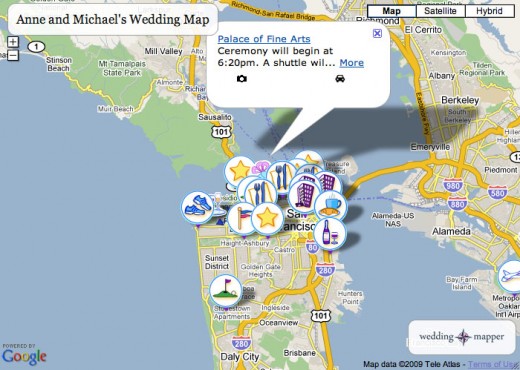
An example of the free Wedding Mapper widget, embedded in a webpage
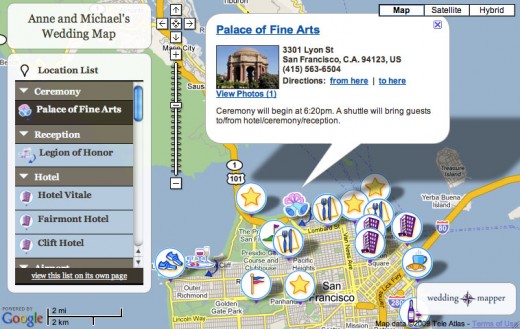
Example of the upgraded widget (paid) embedded in a webpage. Upgrades are $9.95 USD
Select photos shown here are provided by Wedding Mapper, WeddingMapper.com.
 About Jason




Jason,
Thank you for blogging about our fabulous Wedding Map tool!
Cheers,
Alison
Wedding Mapper